> ## Documentation Index
> Fetch the complete documentation index at: https://docs.deeprails.com/llms.txt
> Use this file to discover all available pages before exploring further.
# Defend Overview
> Defend is the most powerful tool within DeepRails' API suite. It is the real-time correction layer that ensures every model output is hallucination-free before it ever reaches your users. By combining adaptive thresholds with automated improvement tools, Defend doesn't just detect low-quality or unsafe responses, it actively fixes or regenerates them, delivering safe, accurate, and reliable outputs at scale.
## Why Defend Exists
Generative AI is transformative, but enterprises are losing billions to hallucinations, compliance failures, and unreliable outputs. Most guardrail solutions only measure quality - they rarely enforce it. Defend was built to solve this gap. It continuously evaluates every response against rigorous guardrails, blocks failures at inference time, and applies automated remediation to protect both your brand and your customers.
## Key Definitions
* **Guardrail Metrics:** The heart of all of our APIs and Evaluations. Defend evaluates outputs against DeepRails' research-backed General-Purpose Guardrail Metrics for correctness, completeness, adherence (context, ground truth, instruction), and comprehensive safety, with full support for Custom Guardrail Metrics available for users on SME & Enterprise plans.
* **Workflow**: Defend requires you to define and create a workflow, which represents a specific LLM use case or task. A workflow bundles together the guardrails, thresholds, improvement strategy, and retry limits that will be applied consistently to every output of that use case.
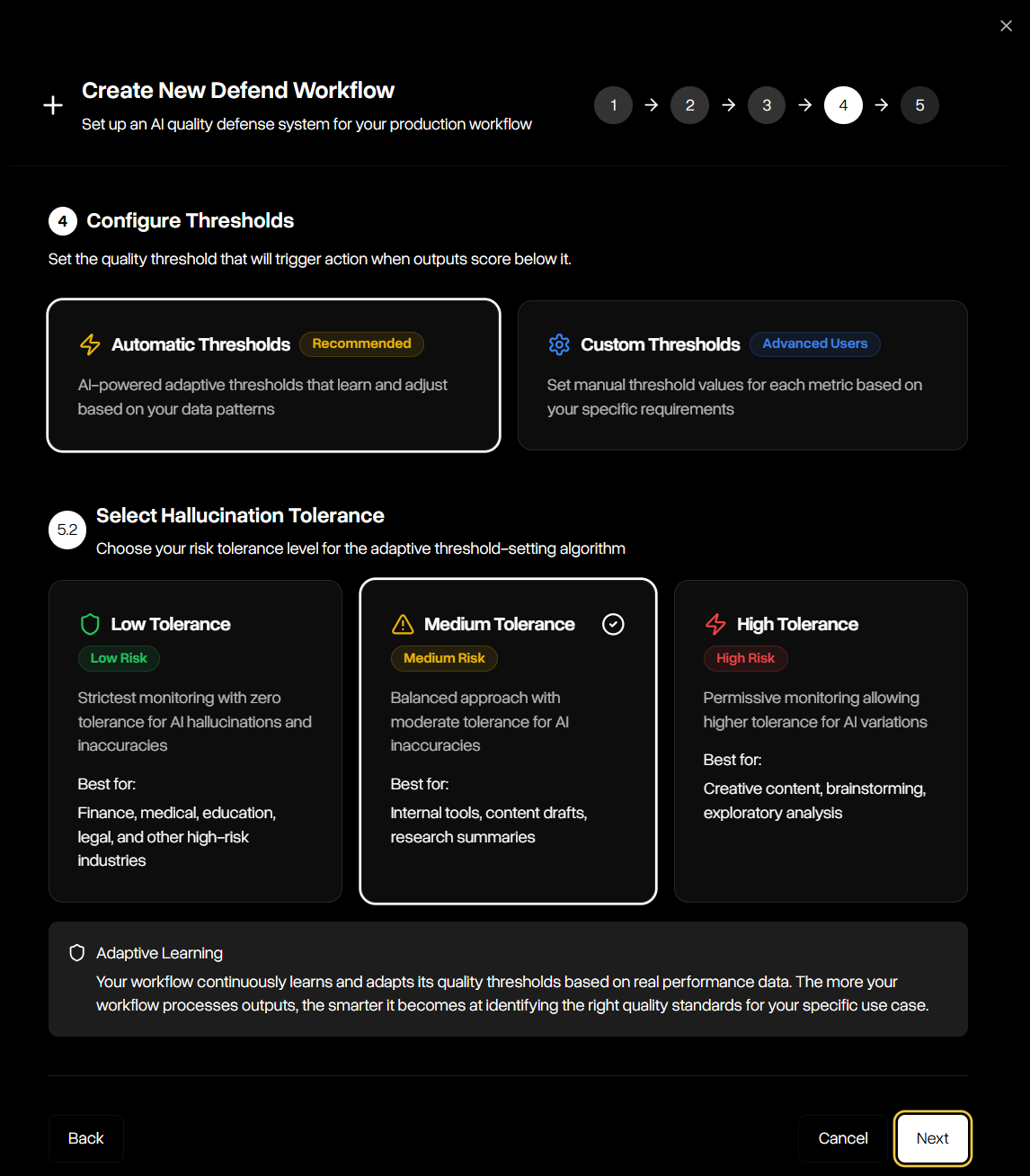
* **Automatic & Custom Thresholds**: A threshold is the score cutoff below which an output is treated as a hallucination. Defend supports automatic thresholds, which adapt dynamically to your selected hallucination tolerance level (low, medium, or high), and custom thresholds, where you define explicit cutoff values for each guardrail for maximum flexibility.
* **Improvement Tools:** When an output fails to meet the thresholds defined in your workflow, Defend can automatically apply one of three improvement strategies:
* **FixIt:** improves the flagged output using the failure rationale and surrounding context until it satisfies the workflow's guardrails or retry limits are reached.
* **ReGen:** Regenerates a new output from the original prompt and parameters, introducing controlled variance to avoid repeating the same failure, and re-evaluates it against the workflow's guardrails.
* **Do Nothing:** Records the failed output without attempting remediation, leaving handling of exceptions entirely to your workflow.
* **Run Modes:** Run modes give developers control over the trade-off between cost and accuracy. Fast uses budget models for maximum speed; Precision offers high accuracy analysis; and Precision Codex, Precision Max, and Precision Max Codex use advanced reasoning and codex models for maximum accuracy.
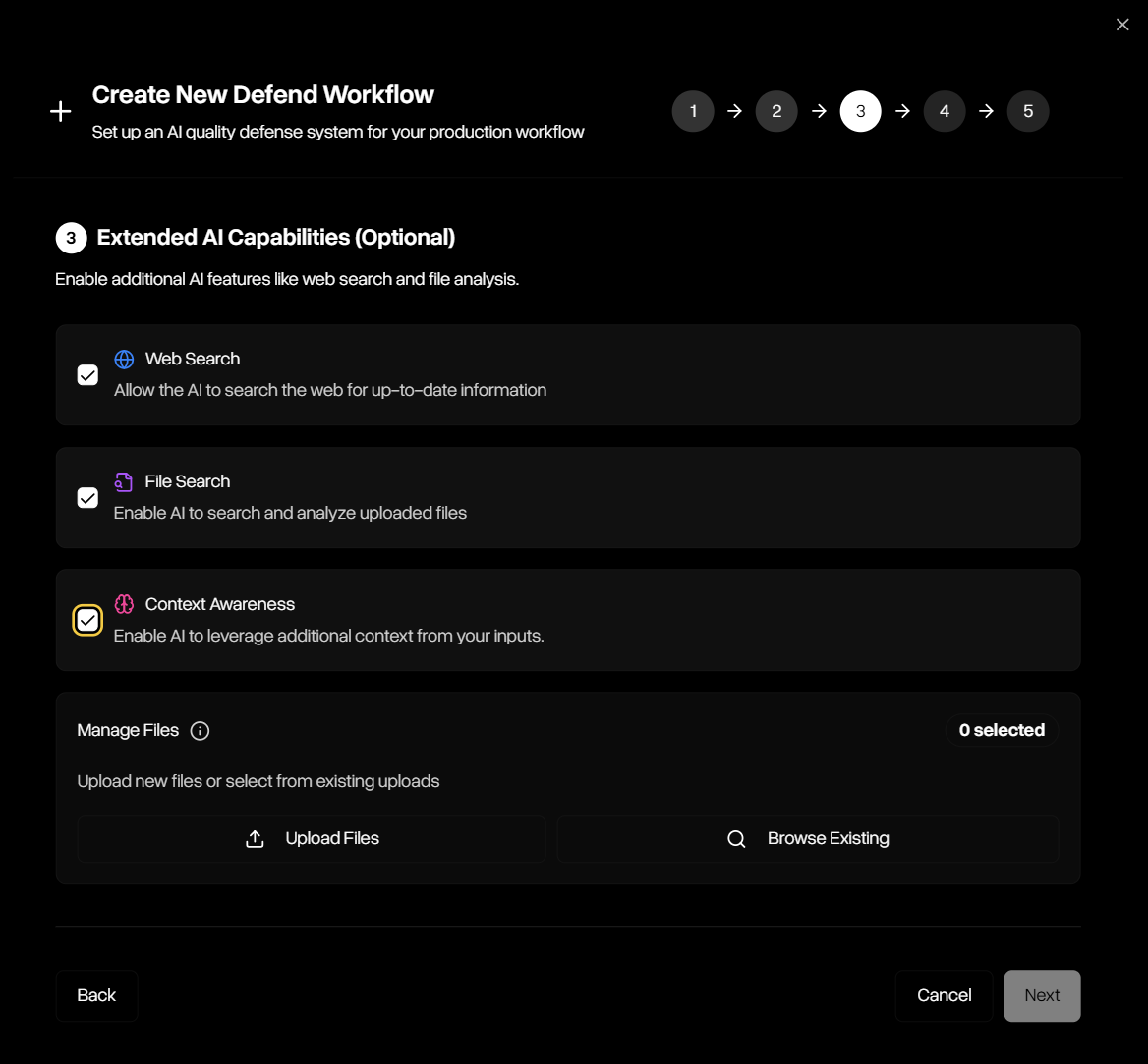
* **Extended AI Capabilities:** Many LLM applications have to go beyond model knowledge. DeepRails provides access to advanced tools like web and file search and context awareness for evaluations if needed.
## How Defend Works
Defend operates via a simple but robust lifecycle:
You define once how outputs will be judged and corrected — guardrails, thresholds, run mode, improvement tool, and retry limits.
Each model completion is submitted as an event with its input/output pair, model, and optional nametag — either programmatically or in the API Playground.
Defend scores the output against your workflow's guardrails, applying the thresholds you've set or selected.
Passing outputs are returned immediately. Failing outputs trigger the improvement tool: FixIt iteratively improves the original output, ReGen regenerates a fresh one, or Do Nothing records the failure without intervention.
Defend returns the outcome (pass/fail), guardrail scores and rationales, the final improved/regenerated output (if applicable), retry history, and detailed cost and status metadata. Every decision is logged under the workflow, and full statistics and visualizations are available in the DeepRails Console for monitoring, auditing, and optimization.
## Console Walkthrough
The Defend Console brings each stage of the lifecycle to life, making it easy to configure, monitor, and optimize your workflows.
### Metrics
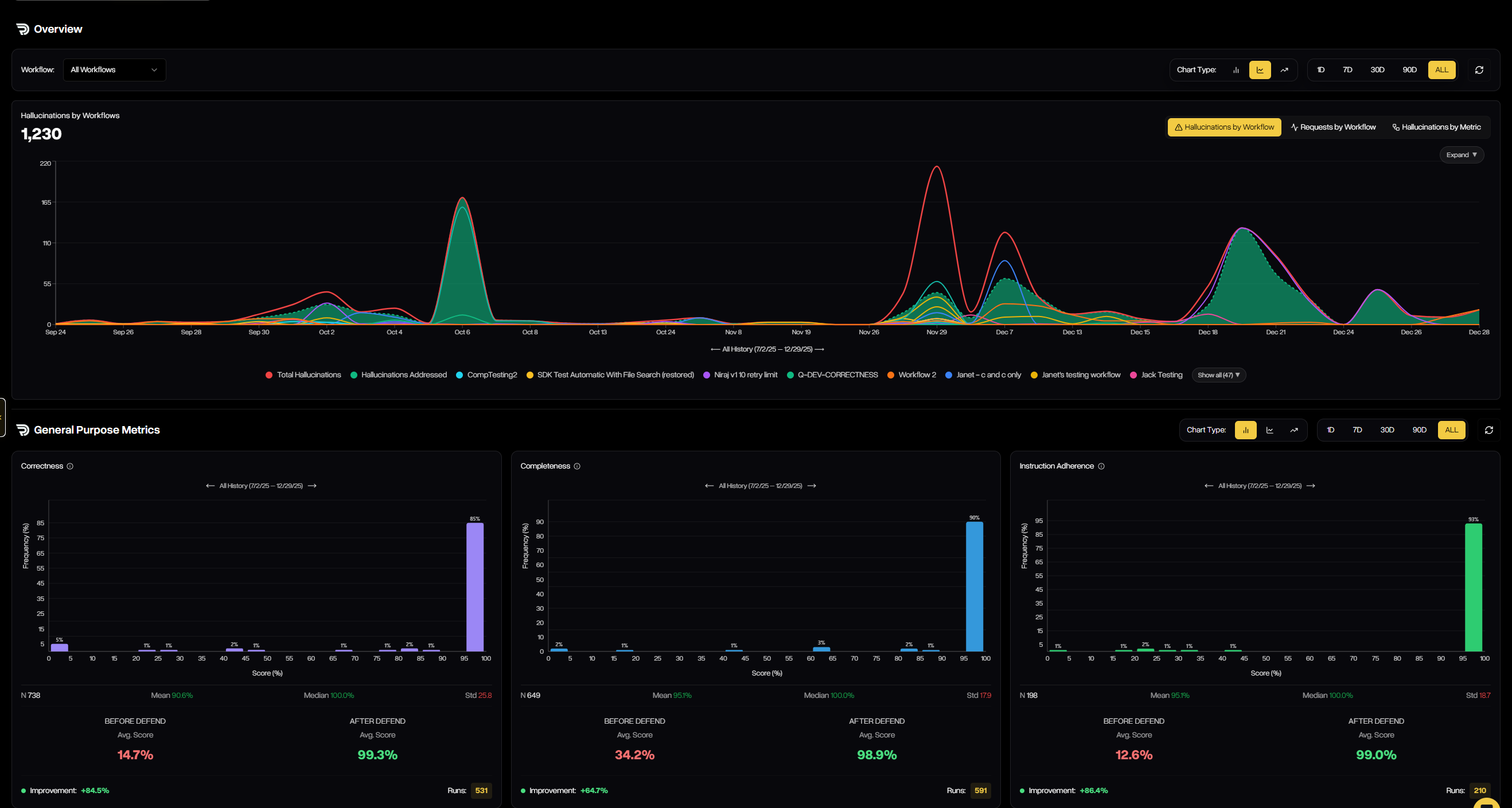
The **Metrics** tab provides a visual, real-time view of how each workflow is performing across all guardrail metrics. It highlights how many outputs are being filtered, improved, or passed, and shows before-and-after score distributions so you can clearly see how Defend is raising quality over time.
 ### Data
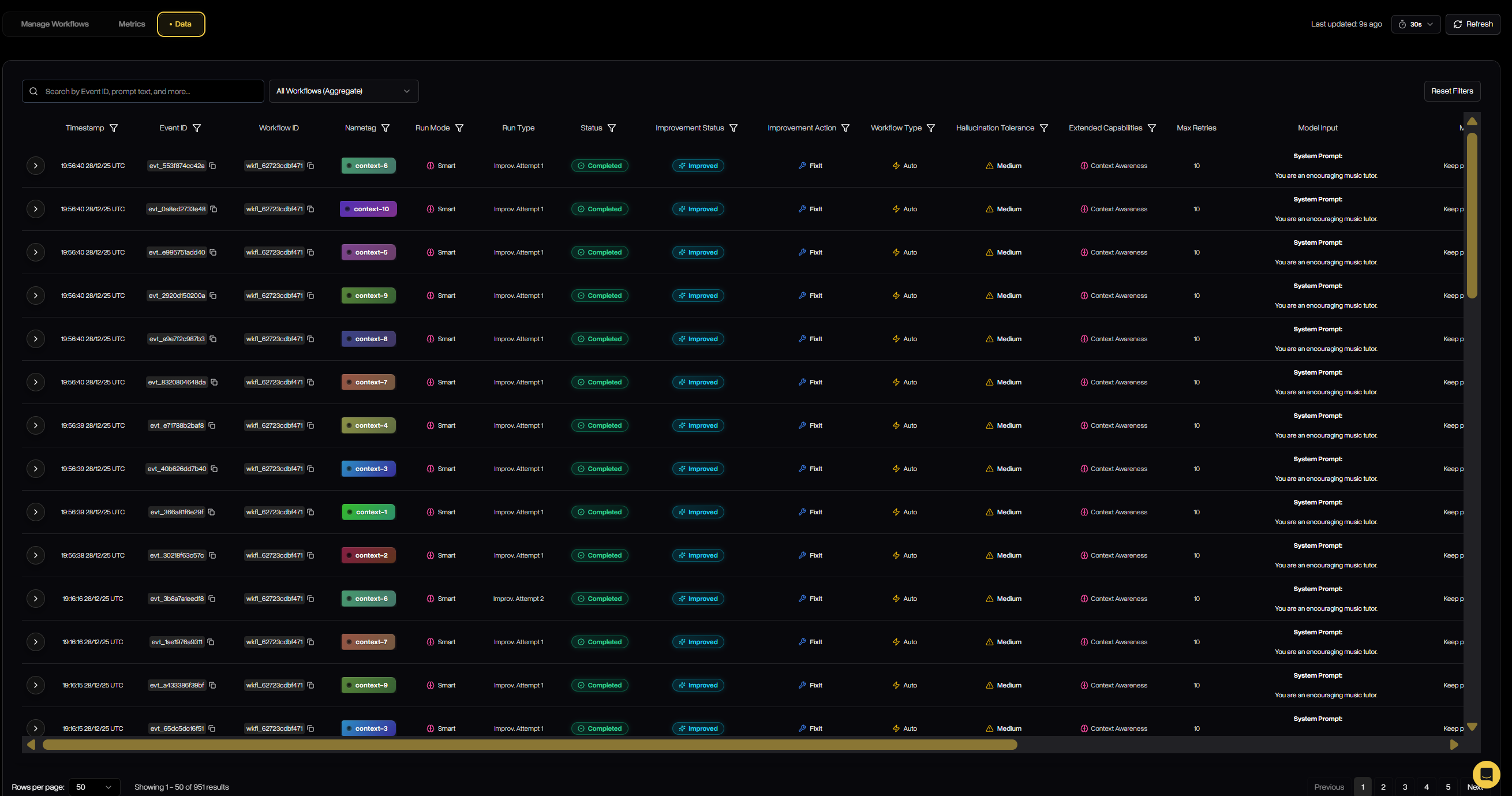
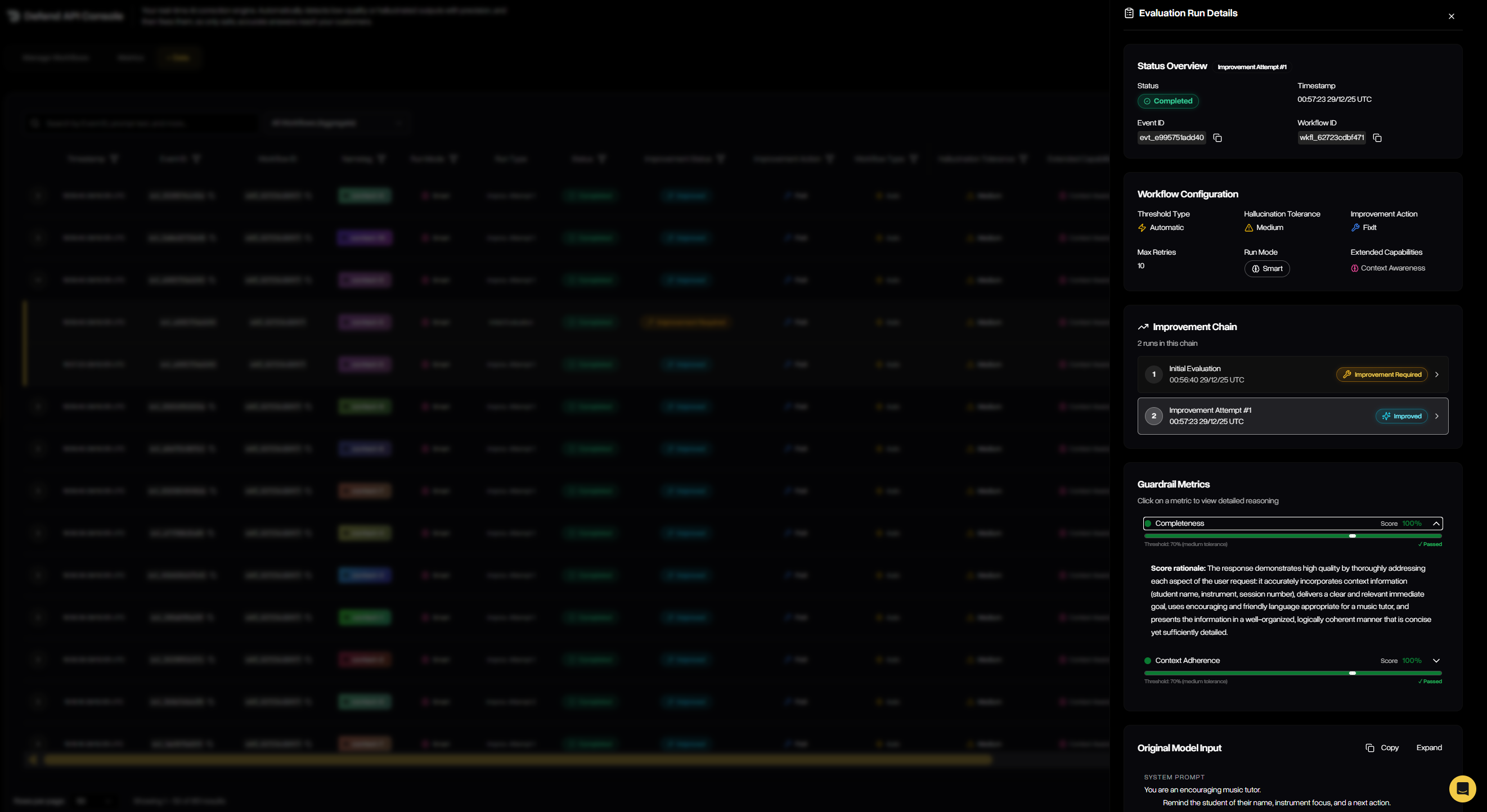
The **Data** tab provides a detailed, event-level view of every evaluation run that passes through a workflow. It captures inputs, outputs, status, scores, and more for each attempt. This gives teams full transparency into how Defend is filtering, correcting, or regenerating outputs in practice.
### Data
The **Data** tab provides a detailed, event-level view of every evaluation run that passes through a workflow. It captures inputs, outputs, status, scores, and more for each attempt. This gives teams full transparency into how Defend is filtering, correcting, or regenerating outputs in practice.
 ### Manage Workflows
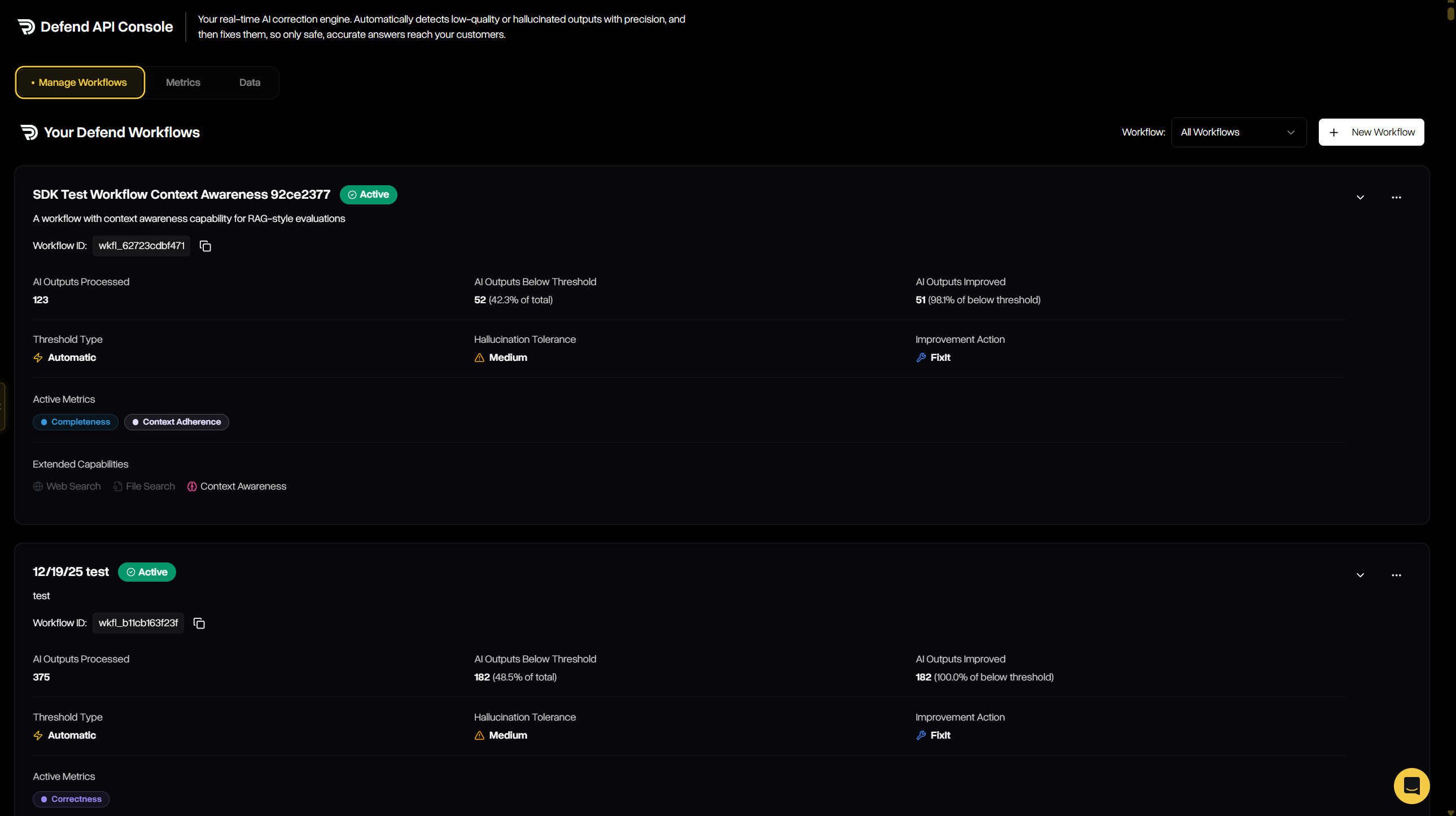
The **Manage Workflows** tab is where you configure, track, and maintain all workflows across your organization. It provides both a high-level summary of each workflow's performance and the ability to drill into configuration details, thresholds, tolerances, and improvement strategies. From here, you can review existing workflows or launch the guided wizard to create new ones.
### Manage Workflows
The **Manage Workflows** tab is where you configure, track, and maintain all workflows across your organization. It provides both a high-level summary of each workflow's performance and the ability to drill into configuration details, thresholds, tolerances, and improvement strategies. From here, you can review existing workflows or launch the guided wizard to create new ones.
 #### Creating a Defend Workflow
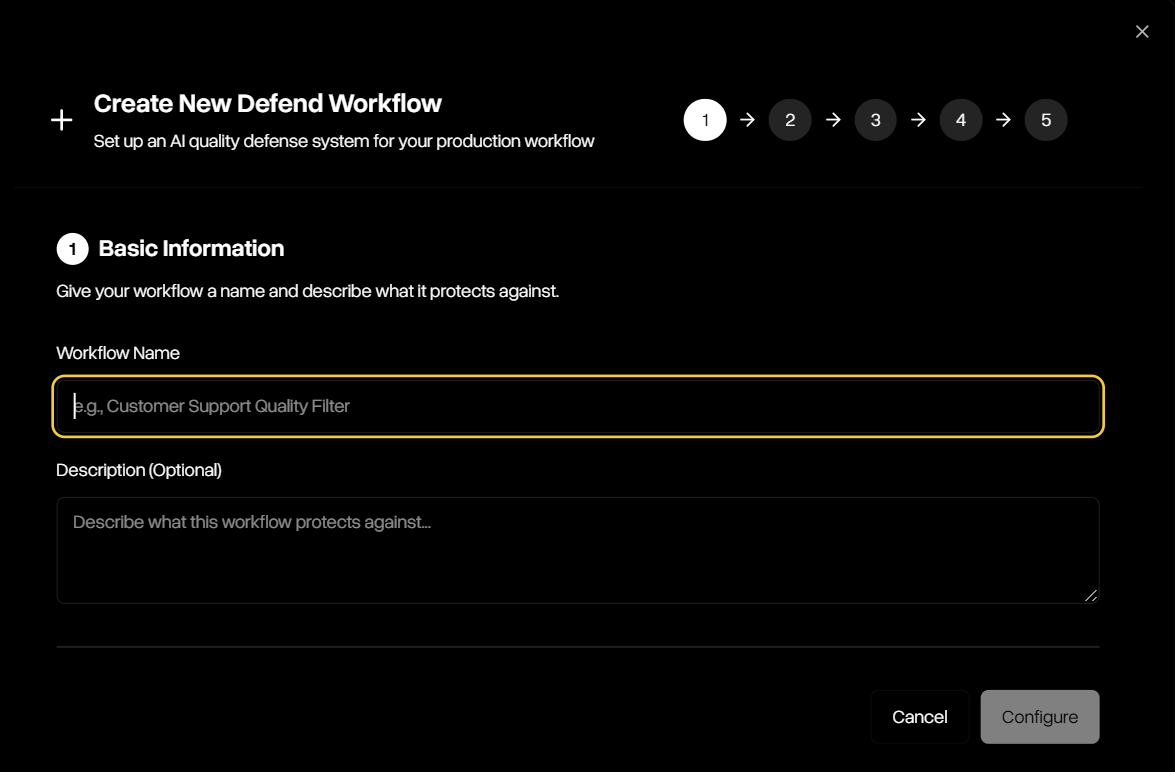
The creation wizard walks you through five simple steps to define how Defend will evaluate and remediate outputs:
Start by naming your workflow and (optionally) describing what it protects against. This helps keep workflows organized and clear for your team.
#### Creating a Defend Workflow
The creation wizard walks you through five simple steps to define how Defend will evaluate and remediate outputs:
Start by naming your workflow and (optionally) describing what it protects against. This helps keep workflows organized and clear for your team.
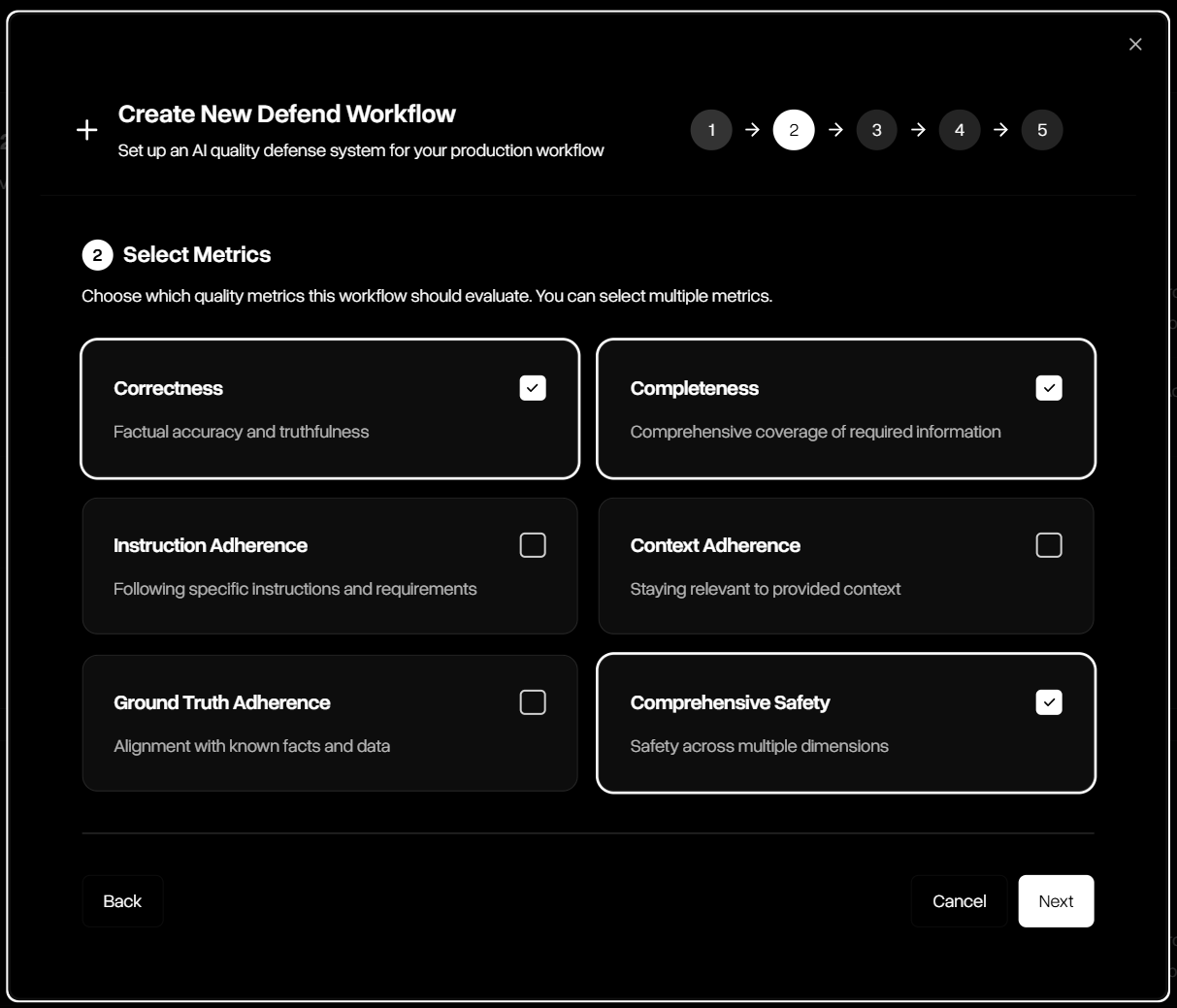
 Choose which guardrail metrics the workflow should evaluate. Multiple guardrails can be combined, including correctness, completeness, adherence, and safety.
 Choose which additional tools will be needed to complete evaluations for your workflow. Each will add cost, so only select a tool if your initial model uses it.
 Define how strict the workflow should be. Use adaptive automatic thresholds with configurable hallucination tolerance (low, medium, high), or set explicit custom thresholds for full control.
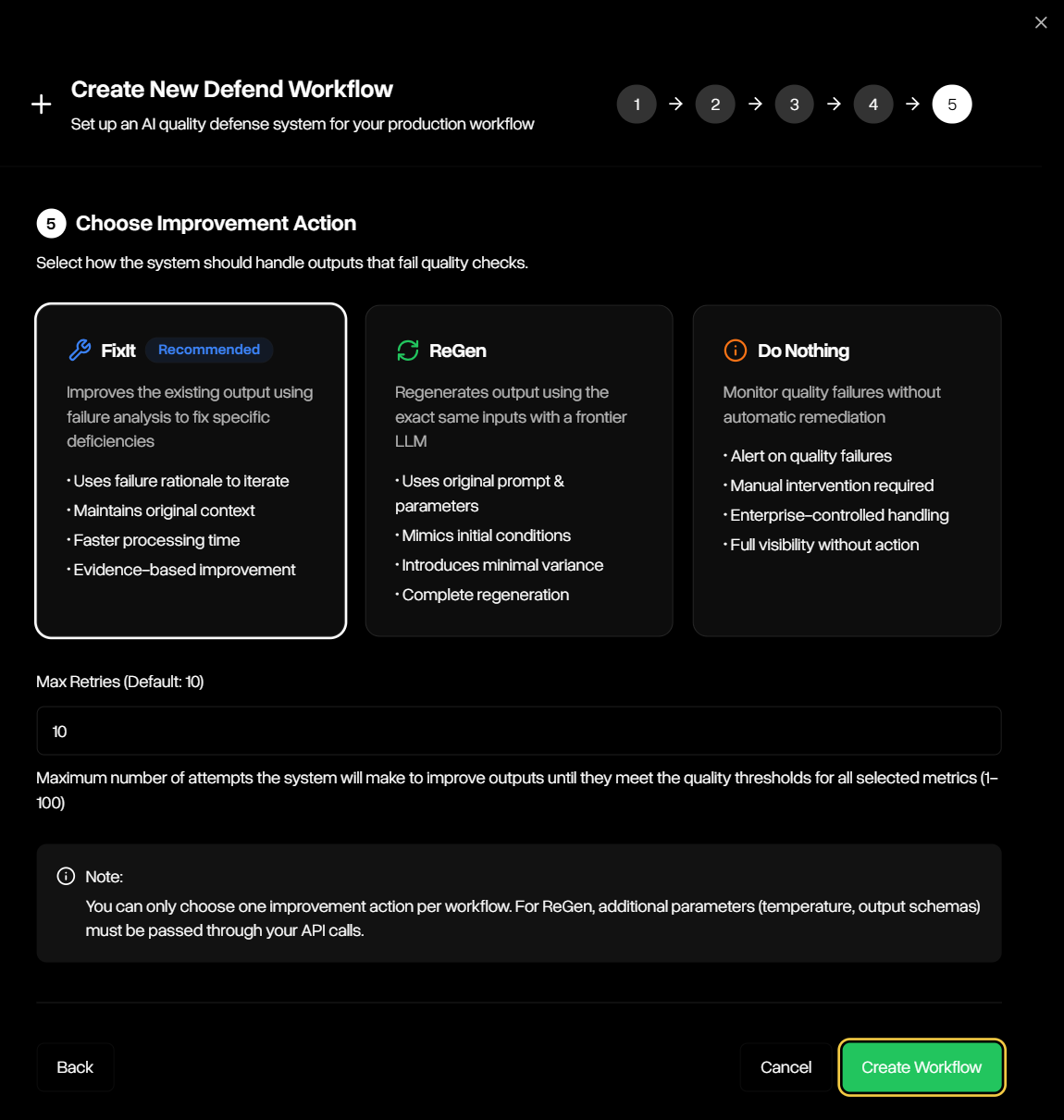
 Decide how Defend should remediate outputs that fail. Options include FixIt (improve the flagged output), ReGen (regenerate a fresh output), or Do Nothing (record the failure only). Configure the maximum number of retries for automated attempts.